Color block tracking
This tutorial is an advanced gameplay for color block positioning experiments, with the addition of a robotic arm following function.
Overview: Target tracking includes two gameplay modes: color tracking and color picking tracking (learning tracking). The principle is to process the image through a camera, recognize the target in a specific way, obtain the coordinate position of the target under the camera, calculate the deviation value between the center point of the target and the center point of the image, and drive the robotic arm to move through PID algorithm debugging. Make the target center point coincide with the image center point.
Code path:~/jetcobot_ws/src/jetcobot_color_follow/color_tracking.ipynb
1. Control Design
- Import header file
import cv2 as cv
import threading
import random
from time import sleep
import ipywidgets as widgets
from IPython.display import display
from color_follow import color_follow
from jetcobot_utils.jetcobot_info import *
- Create an instance and initialize parameters
follow = color_follow()
model = 'General'
HSV_learning = ()
color_hsv = {"red": ((0, 25, 90), (10, 255, 255)),
"green": ((53, 36, 40), (80, 255, 255)),
"blue": ((110, 80, 90), (120, 255, 255)),
"yellow": ((25, 20, 55), (50, 255, 255))}
color = [[random.randint(0, 255) for _ in range(3)] for _ in range(255)]
if is_Jetson_Nano():
HSV_path="/home/jetson/jetcobot_ws/src/jetcobot_color_identify/scripts/HSV_config.txt"
else:
HSV_path="/root/jetcobot_ws/src/jetcobot_color_identify/scripts/HSV_config.txt"

try:
read_HSV(HSV_path,color_hsv)
except Exception as e:
print(e)
print("Read HSV_config Error !!!")
- Create control
button_layout = widgets.Layout(width='200px', height='100px', align_self='center')
# Output widget
output = widgets.Output()
# Color tracking
color_follow = widgets.Button(description='color_follow', button_style='success', layout=button_layout)
# Select color
choose_color = widgets.ToggleButtons(options=['red', 'green', 'blue', 'yellow'], button_style='success',
tooltips=['Description of slow', 'Description of regular', 'Description of fast'])
# Cancel tracking
follow_cancel = widgets.Button(description='follow_cancel', button_style='danger', layout=button_layout)
# Learn color
learning_color = widgets.Button(description='learning_color', button_style='primary', layout=button_layout)
# Learn color tracking
learning_follow = widgets.Button(description='learning_follow', button_style='success', layout=button_layout)
# exit
exit_button = widgets.Button(description='Exit', button_style='danger', layout=button_layout)
# Image widget
imgbox = widgets.Image(format='jpg', height=480, width=640, layout=widgets.Layout(align_self='auto'))
# Vertical layout
img_box = widgets.VBox([imgbox, choose_color], layout=widgets.Layout(align_self='auto'))
# Vertical layout
Slider_box = widgets.VBox([color_follow, learning_color, learning_follow,follow_cancel,exit_button],
layout=widgets.Layout(align_self='auto'))
# Horizontal layout
controls_box = widgets.HBox([img_box, Slider_box], layout=widgets.Layout(align_self='auto'))
# ['auto', 'flex-start', 'flex-end', 'center', 'baseline', 'stretch', 'inherit', 'initial', 'unset']
- Mode switching
def color_follow_Callback(value):
global model
model = 'color_follow'
def learning_color_Callback(value):
global model
model = 'learning_color'
def learning_follow_Callback(value):
global model
model = 'learning_follow'
def follow_cancel_Callback(value):
global model
model = 'General'
def exit_button_Callback(value):
global model
model = 'Exit'
color_follow.on_click(color_follow_Callback)
learning_color.on_click(learning_color_Callback)
learning_follow.on_click(learning_follow_Callback)
follow_cancel.on_click(follow_cancel_Callback)
exit_button.on_click(exit_button_Callback)
- Main function
def camera():

global HSV_learning,model
# Open camera
capture = cv.VideoCapture(0)
capture.set(3, 640)
capture.set(4, 480)
capture.set(5, 30)
# Be executed in loop when the camera is opened normally
#  # translated to English (best-effort)
while capture.isOpened():
try:
_, img = capture.read()
img = cv.resize(img, (640, 480))
#             cv.line(img, (320, 0), (320, 480), color=(0, 255, 0), thickness=1)
#             cv.line(img, (0, 240), (640, 240), color=(0, 255, 0), thickness=1)
print("model = ",model)
if model == 'color_follow':
img= follow.follow_function(img, color_hsv[choose_color.value])
cv.putText(img, choose_color.value, (int(img.shape[0] / 2), 50), cv.FONT_HERSHEY_SIMPLEX, 2, color[random.randint(0, 254)], 2)
if model == 'learning_color':
img,HSV_learning = follow.get_hsv(img)
if model == 'learning_follow' :
if len(HSV_learning)!=0:
img = follow.learning_follow(img, HSV_learning)
cv.putText(img,'LeColor', (240, 50), cv.FONT_HERSHEY_SIMPLEX, 1, color[random.randint(0, 254)], 1)
if model == 'Exit':
cv.destroyAllWindows()
capture.release()
break
imgbox.value = cv.imencode('.jpg', img)[1].tobytes()
# except KeyboardInterrupt:
except Exception as e:
print(e)
capture.release()
- Start
display(controls_box,output)
threading.Thread(target=camera, ).start()
2. Run program
Click the program run button on the jupyterlab toolbar, run the entire program, and then drag it to the bottom.

- Color tracking
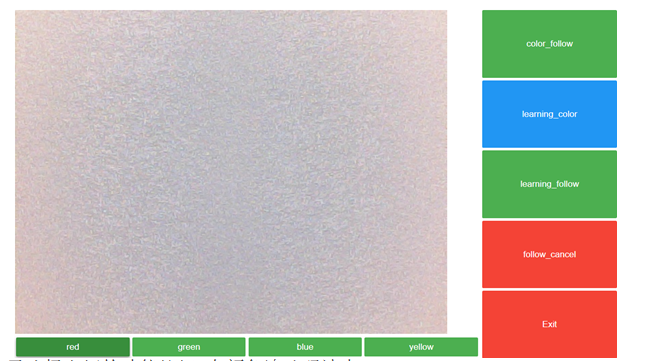
By default, no color blocks are tracked, and we need to select the corresponding function button.
Start the code block and click the 【 colorfollow 】 button to enable color tracking. You can switch colors below the image by placing the color block in front of the camera. Once the camera recognizes it, the robotic arm will move along with the block and face the center of the block.
Click the 【follow_cancel】 button to cancel tracking.
Click the 【Exit】 button to exit the program
- Custom color tracking
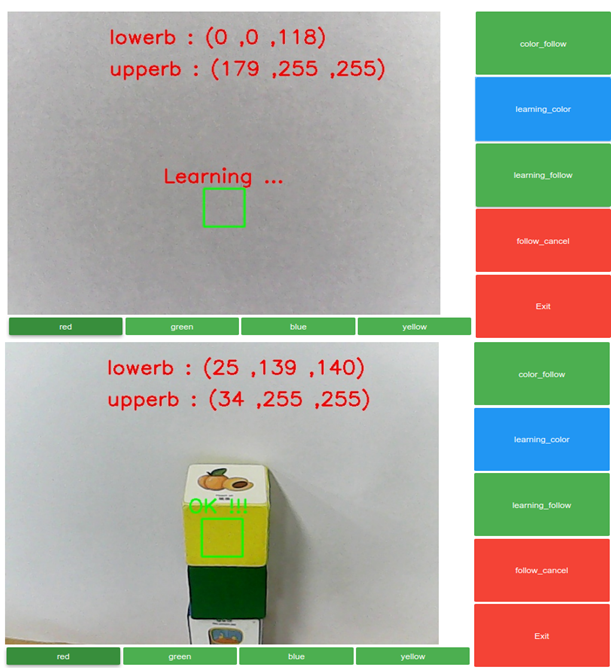
Start the code block, click the 【 leraning_color 】 button, and a box will appear in the center of the screen, as shown in the left figure
Place objects inside the box and print the high and low thresholds of HSV in real-time. When the word 【OK!!!】appears below the box, it indicates successful recognition
Click the 【leraning_follow】 button, and as long as the contour of the learned color can be detected, it can be tracked in real time
Click the 【follow_cancel】 button to cancel tracking.
Click the 【Exit】 button to exit the program.